These are digital downloads. The current paper packs do not include shipped paper. Files are delivered by email after confirmed payment. Product pages list the formats, dimensions, layouts and permitted uses for each pack.
1. Choose an included PDF or an image file
For a straightforward print, start with a prepared PDF in the paper size you intend to use. For example, Grimoire Journal Pages includes journal layouts in A4, A5 and Letter. Check the pack details before buying; every collection has its own file set.
Choose a JPG or PNG when you want to add text, illustrations or other layers in a design app first. Set your document to the intended finished size, place the texture without stretching it, and leave room for binding, trimming and your printer's margins.
2. Check paper size, scaling and one test page
- Match the file and paper. Select the same paper size in your print dialog as the PDF layout and the sheet in your printer.
- Check scaling. Start with Actual size or 100%. If your printer cannot print the full page, use its fit-to-printable-area option. This can make the design smaller; inspect the preview for clipped borders or unexpected margins.
- Print one test. Use plain paper first to check the layout and text placement. Then test your chosen stock using a paper type and weight supported by your printer.
- Check the result before printing a set. Look at border placement, writing contrast and the space needed for folds or binding. Screen brightness, paper and printer settings can change how light or dark a texture looks.
3. Check source resolution and transparency
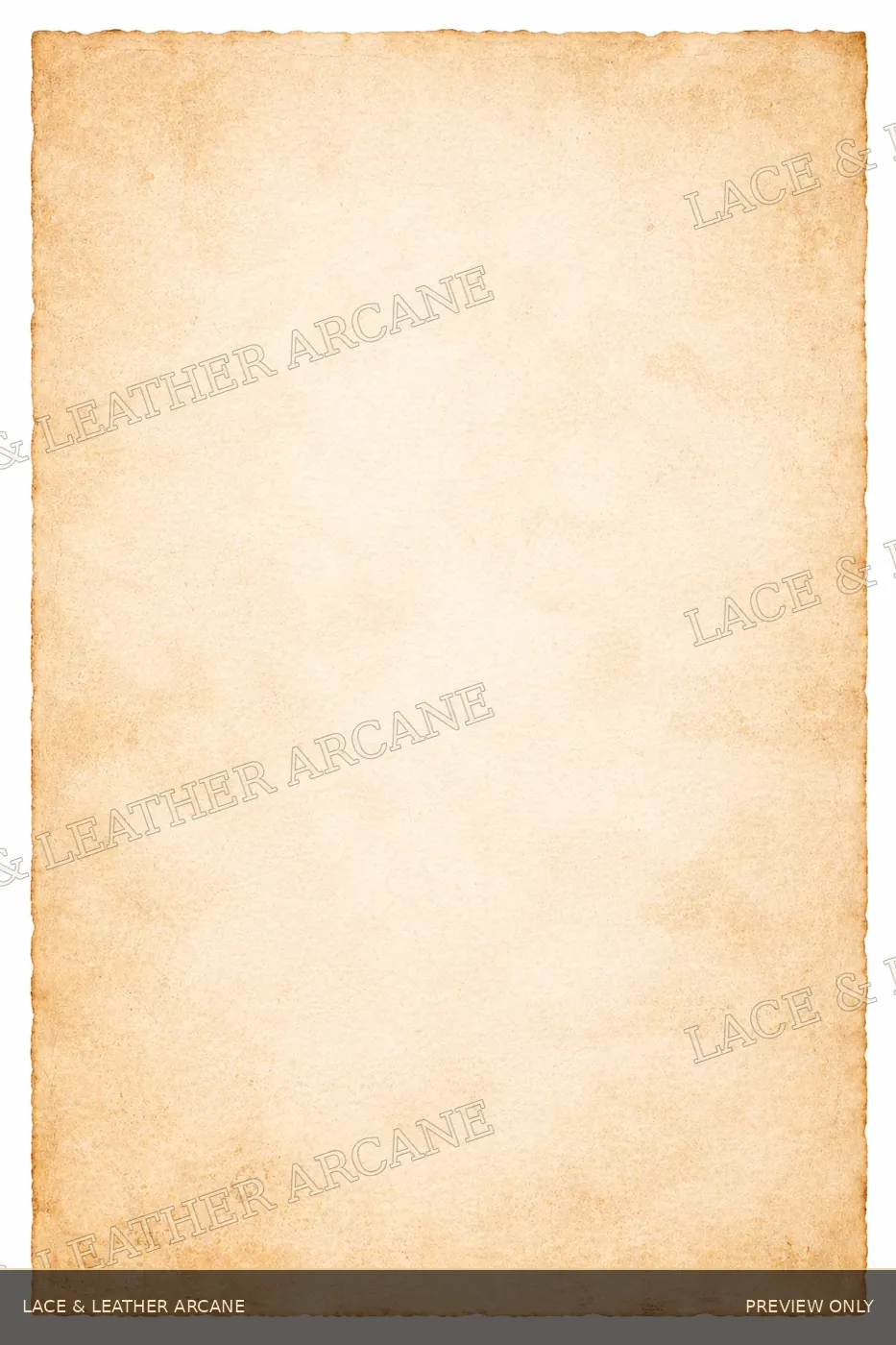
A PDF layout does not add new detail to the original image. Enlarging a texture spreads its pixels across more paper, so check the source dimensions and your intended print size. A small test at the final size is more useful than assuming every PDF is native 300 PPI.
The Antiquarian's Cabinet, for example, has 1024 × 1536 artwork on slightly larger PNG canvases. Its larger PDF layouts are not native 300 PPI. The product page explains the prepared sizes and why smaller prints retain more detail.
PNG also does not mean that the whole paper is transparent. The Antiquarian's Cabinet has a narrow transparent outer border; the paper surface itself is opaque. Choose files by their stated properties when layering them over another design.
4. Choose the pack by the page you want to make
- Blank writing space: Parchment Light Vol. 1 has ten light aged-paper textures with clear centers.
- Designed journal layouts: Grimoire Journal Pages has eight designs for Book of Shadows entries, tarot notes and reflection. For parchment backgrounds you can lay out yourself, see the twelve-texture Grimoire Parchment collection.
- Decorative writing and lore: Explore Victorian Parchment Light Vol. 2 or Illuminated Manuscripts for their distinct borders and manuscript details.
- Maps and campaign handouts: Mapmakers Series fantasy map paper provides aged surfaces for cartography and worldbuilding.
- Archive and collage projects: The Antiquarian's Cabinet junk journal printables includes twenty archival designs. Smithy dark parchment textures offers a darker material palette.
Compare the product details and preview galleries before choosing. Start with one test page, adjust your layout, and then print the pages your project needs.